Zapier Integration
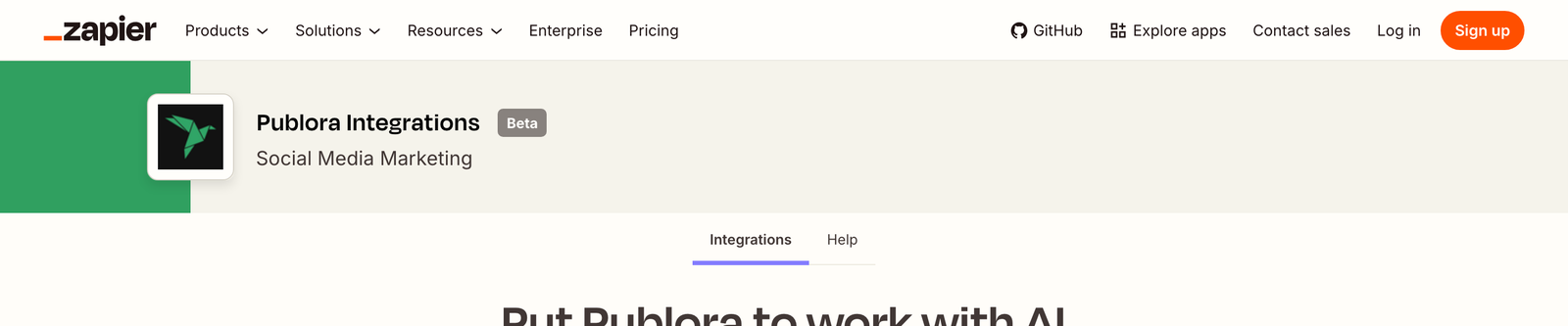
Publora has a native Zapier app, so anything that can start a Zap can also publish to your social accounts. A new row in a spreadsheet, a fresh item in an RSS feed, a message in Slack. Any of them can turn into a scheduled post across your connected platforms, without writing a line of code.
The integration is currently in beta. Everything below works today; the set of triggers and actions will grow.
Before you start
- A Publora account with at least one connected social account.
- A Zapier account. The free plan is enough for single-step Zaps.
Step 1 — Get your Publora API key
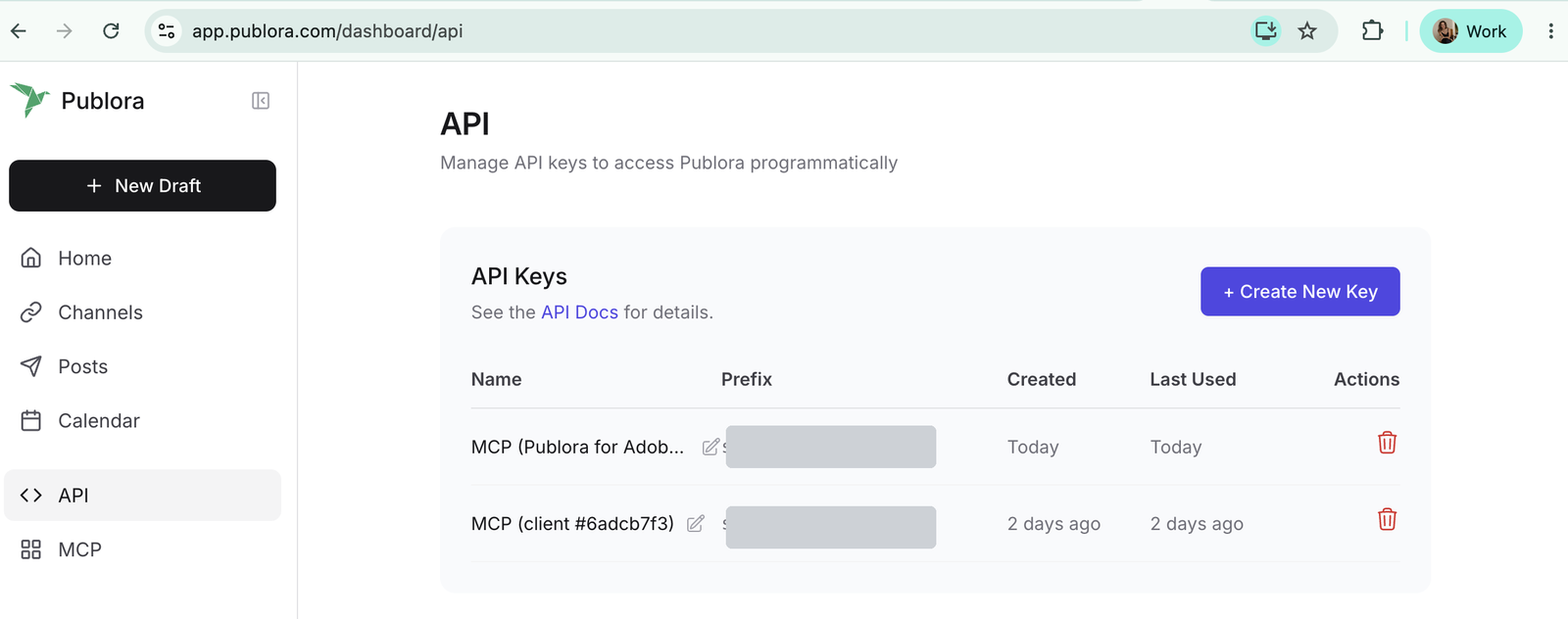
In the Publora dashboard, open API in the left sidebar (or go straight to app.publora.com/dashboard/api) and click + Create New Key. Copy it right away; the full key is shown once, and the list afterwards only keeps a short prefix so you can tell your keys apart.
Step 2 — Open the Publora app on Zapier
Go to zapier.com/apps/publora/integrations and pick a template, or start a Zap from scratch and search for Publora in the editor.
Step 3 — Connect your account
When Zapier asks to connect Publora, paste the key into the Publora API Key field and click Connect. Zapier checks it by fetching your connected accounts, so a wrong key fails immediately instead of later.
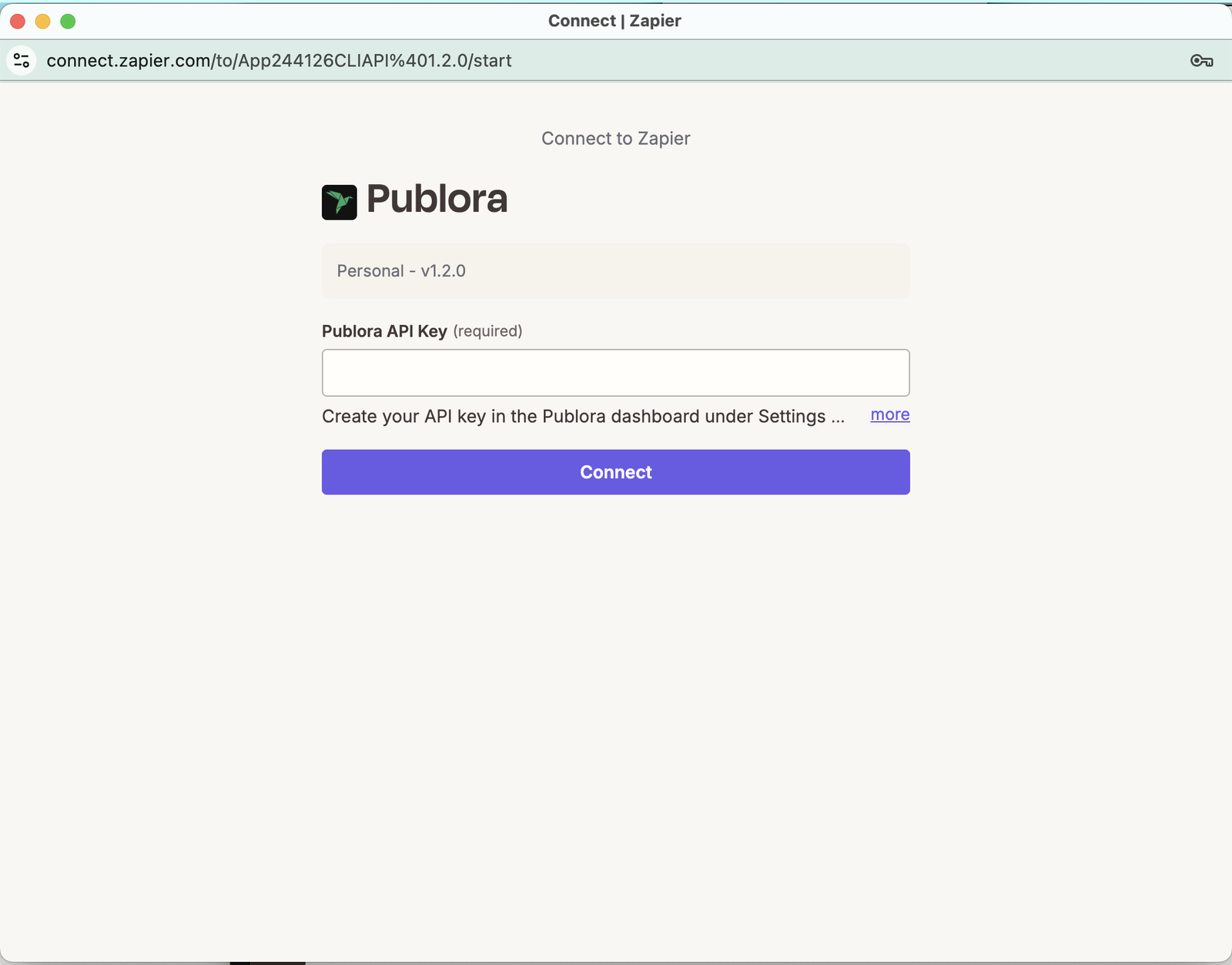
Once it goes through, the account shows up in the step and can be reused by every other Zap you build. You can manage the connection any time at zapier.com/app/connections.
Step 4 — What you can build
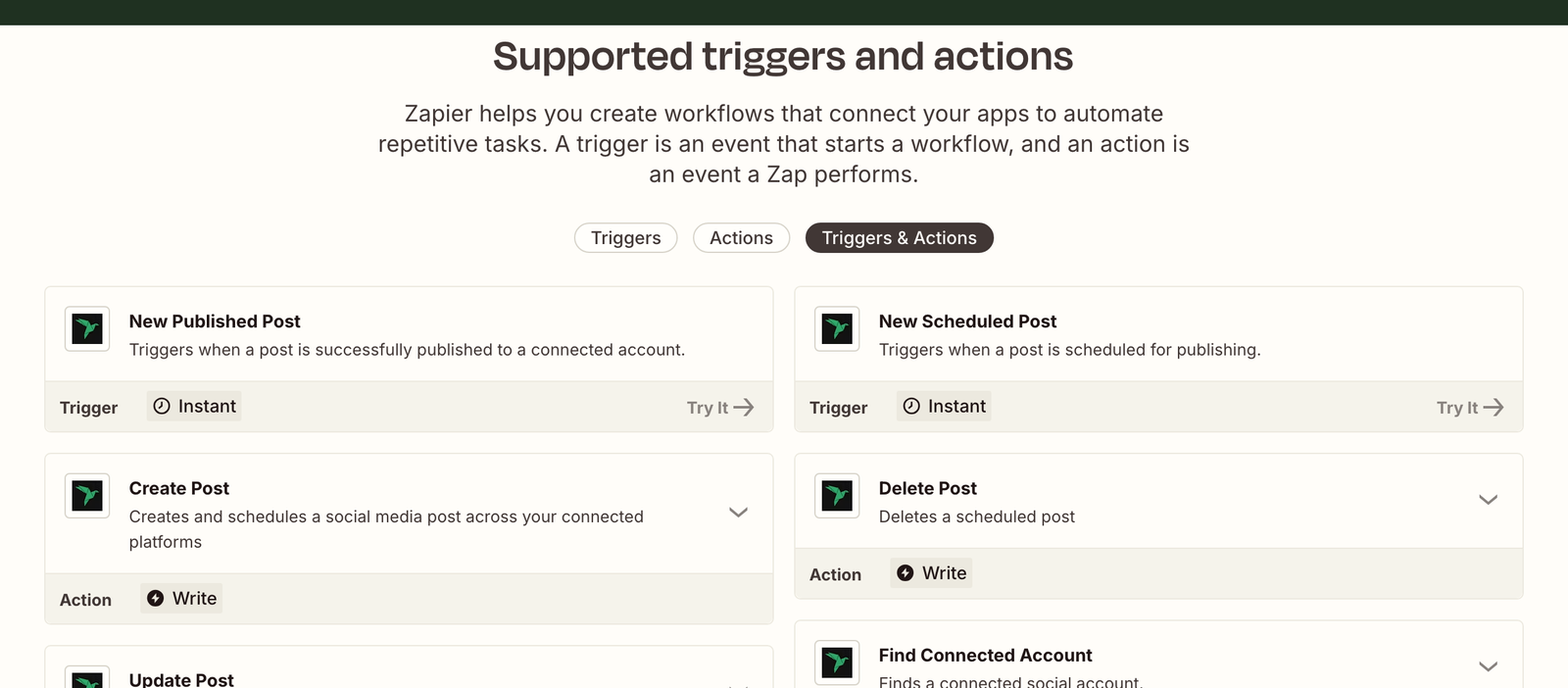
Triggers (Publora starts the Zap). Both are instant: Publora pushes the event to Zapier the moment it happens, instead of Zapier polling for changes on a schedule.
- New Published Post — a post was published to a connected account
- New Scheduled Post — a post was scheduled for publishing
Actions (Publora does something):
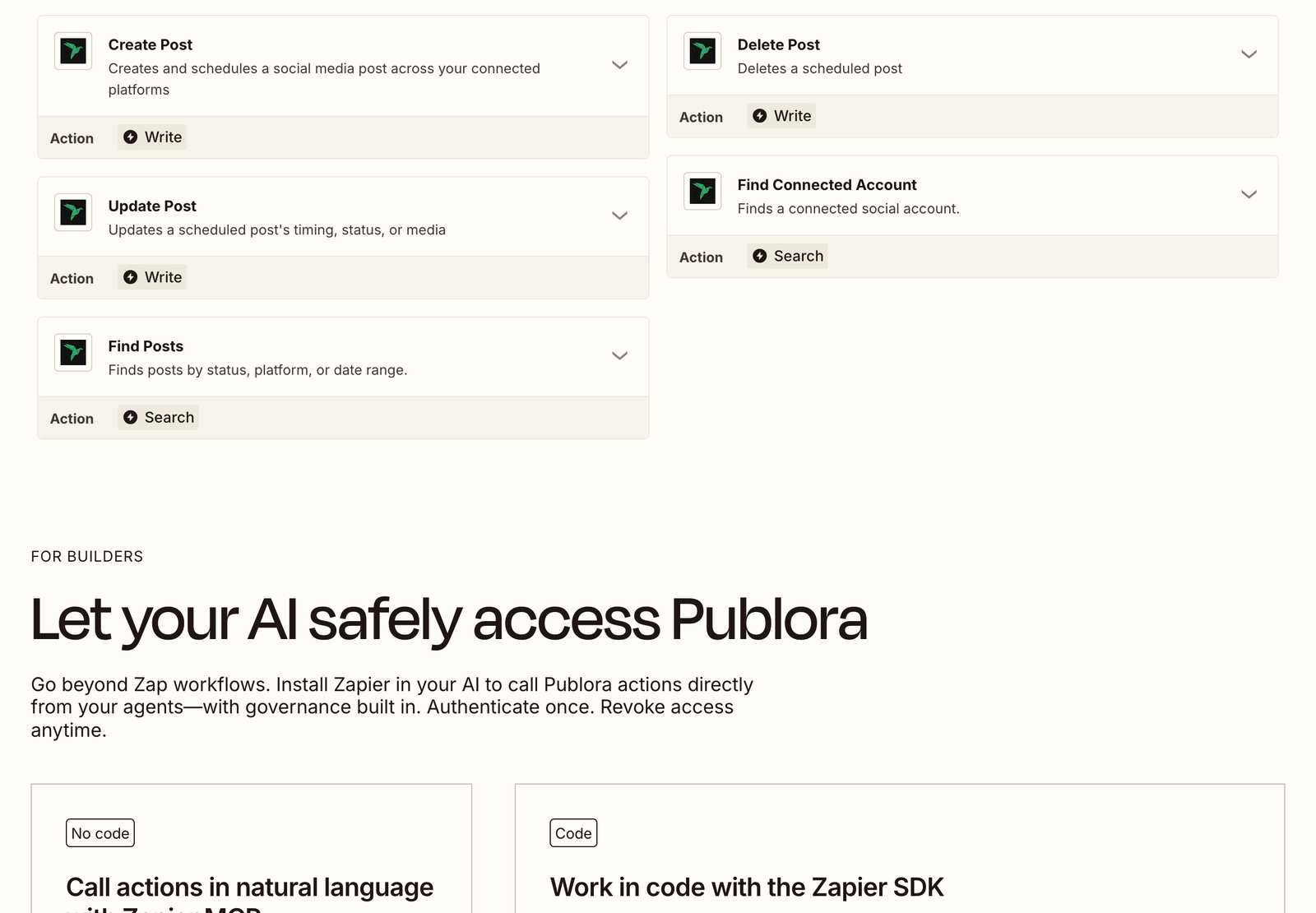
- Create Post — creates and schedules a post across your connected platforms
- Update Post — changes a scheduled post's timing, status, or media
- Delete Post — deletes a scheduled post
Searches:
- Find Connected Account — looks up a connected social account
- Find Posts — finds posts by status, platform, or date range
Example: publish new blog posts automatically
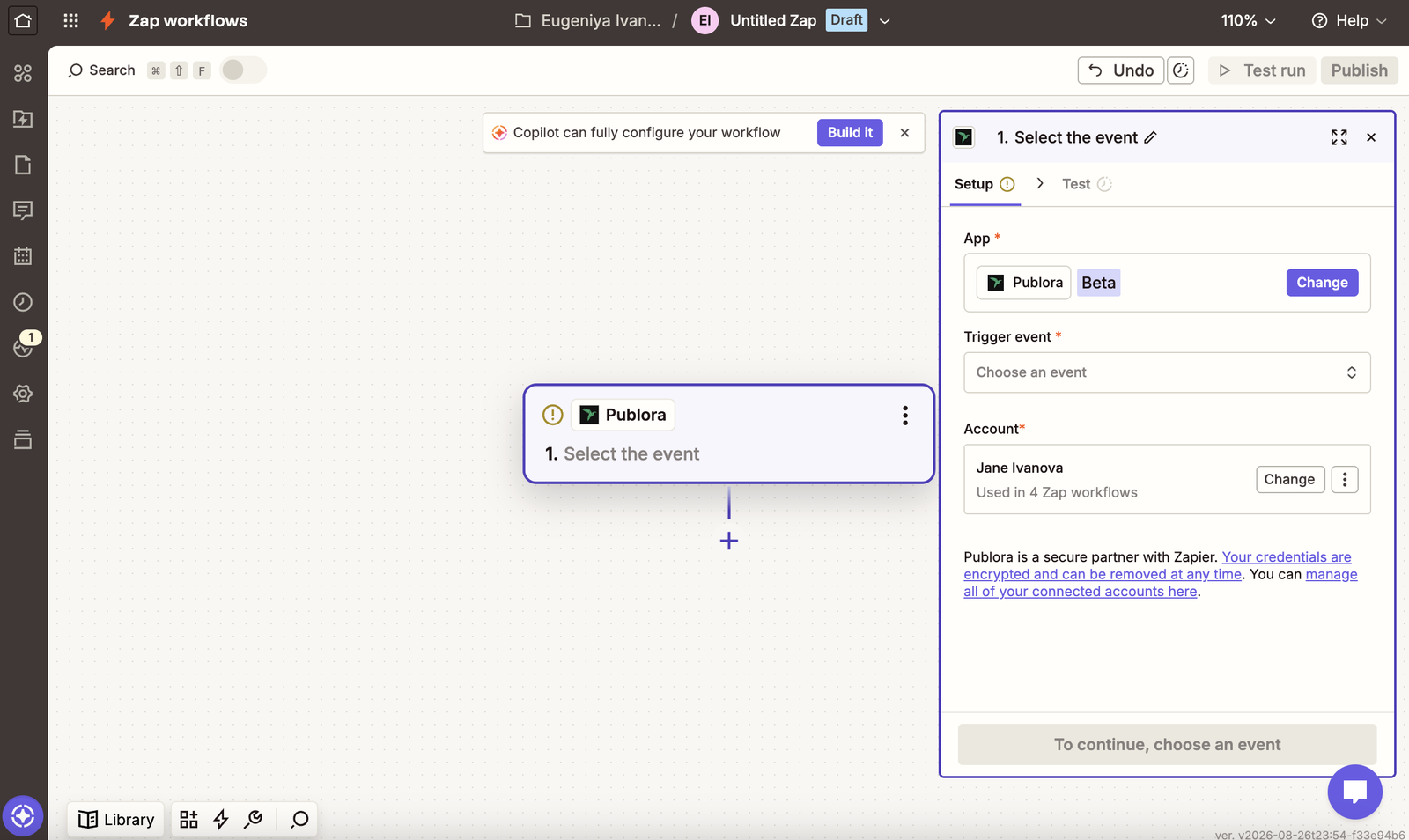
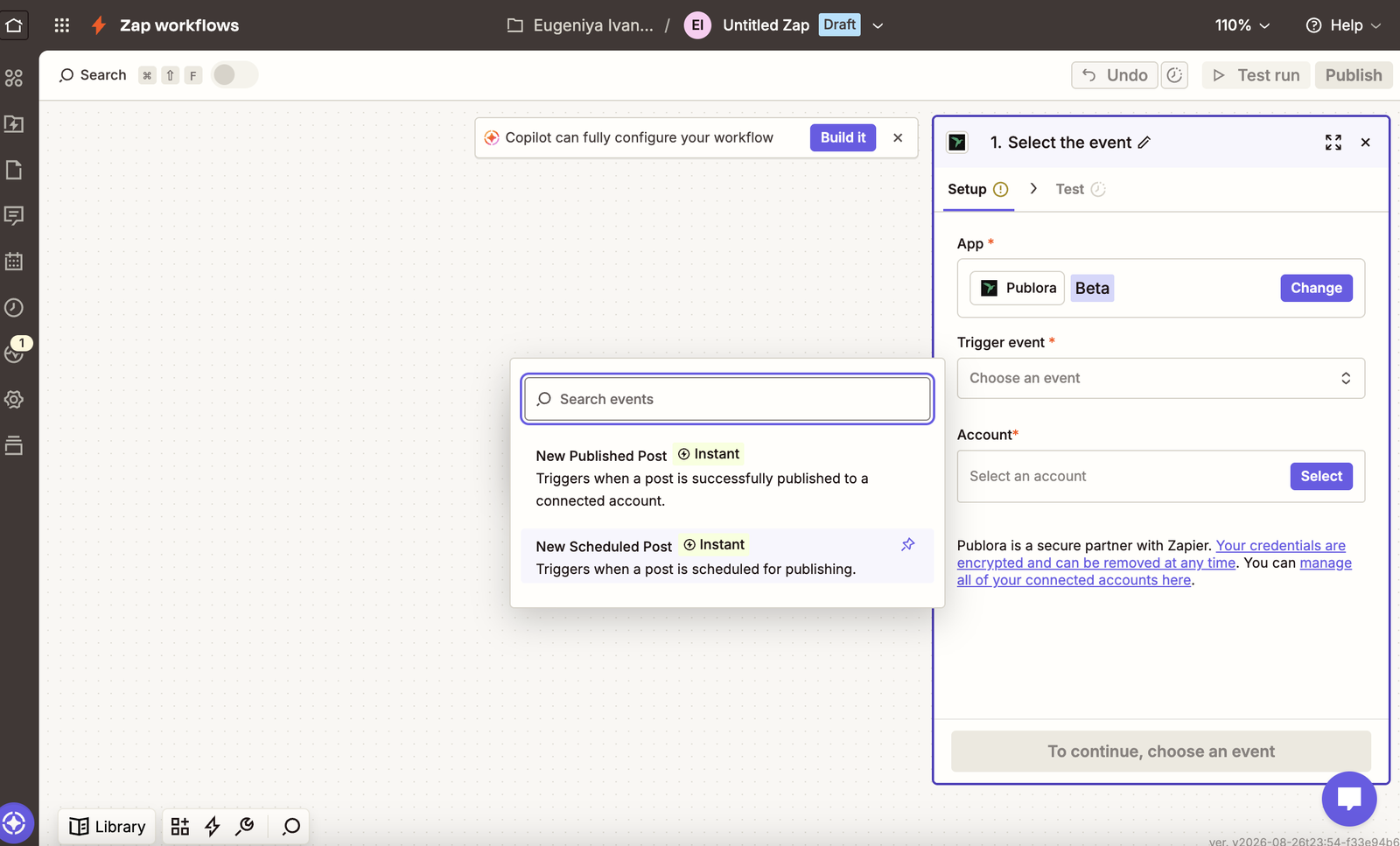
Wire up RSS by Zapier → New Item in Feed as the trigger, then Publora → Create Post as the action. Picking the event takes one click:
Create Post has four fields:
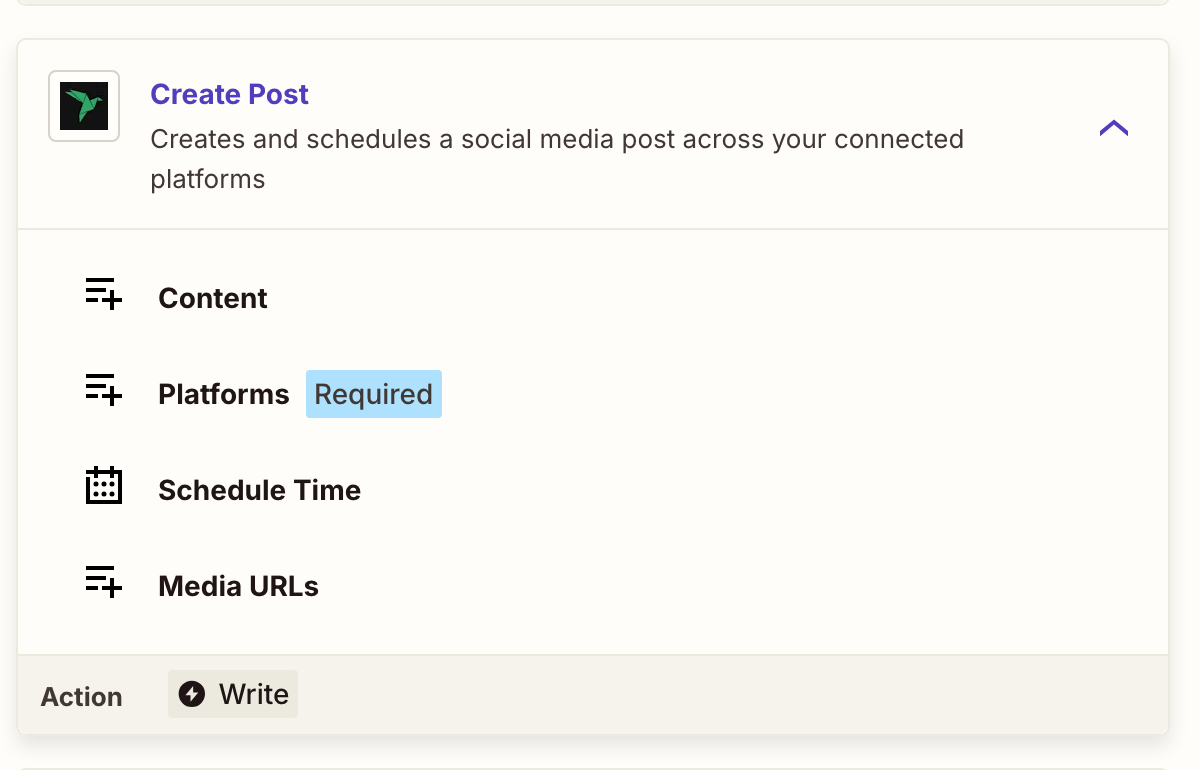
Pick your accounts under Platforms. The dropdown lists the accounts you've connected in Publora, so there are no IDs to copy by hand. Map the feed's title and link into Content, and either leave Schedule Time empty to create a draft or set a time to schedule it. Test the step, then publish the Zap. Every new post in the feed now becomes a post on your networks.
Example: get alerted when something publishes
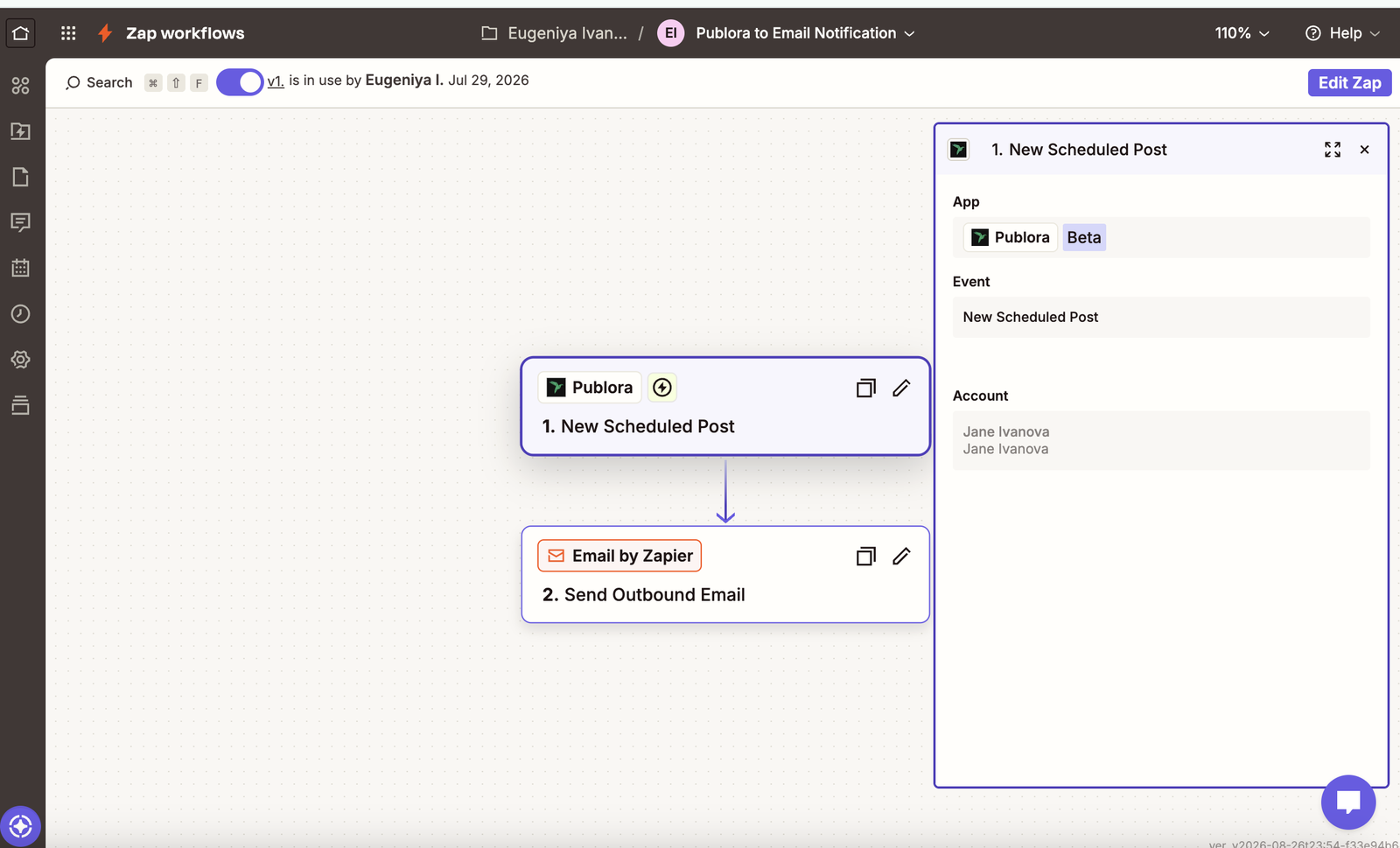
Use Publora → New Scheduled Post or New Published Post as the trigger, then send it wherever you keep an eye on things: Email by Zapier for a notification, Google Sheets → Create Row for a running log, or Slack → Send Channel Message for a ping.
More ideas
- New row in Google Sheets → Create Post, scheduled from a column
- New item in a Notion database → Create Post
- New WordPress post → Create Post, announcing it on your networks
- New Airtable record with status Approved → Create Post
- Schedule by Zapier, weekly → Create Post for a recurring digest
Tips and troubleshooting
- Leaving Schedule Time empty creates a draft, not an immediate post.
- Instagram, TikTok, and YouTube require media. Pass public
httpsURLs in Media URLs. - You can't update a post that has already published. Deleting a published post removes it from Publora, but not from the platforms it already went out to.
- Times are ISO 8601, in UTC, and Schedule Time must be in the future. Zaps can queue behind rate limits — if the time you mapped has already passed when the step runs, Publora clamps a small delay to "now" (returning a
SCHEDULED_TIME_COERCEDwarning) and rejects anything five or more minutes stale. Add a few minutes of buffer.
Calling the API directly
The Zapier app covers scheduling, editing, and publishing events. If you need an endpoint it doesn't expose, you can still call the Publora API from a Webhooks by Zapier step: send a POST to https://api.publora.com/api/v1/create-post with your key in the x-publora-key header. See Authentication for the key setup and Core Workflows for every endpoint in curl form.